Media Library
FrankenCMS uses Spatie Media Library for powerful media management with automatic image processing, responsive images, and focal point cropping.
Uploading Media
Media can be uploaded in several ways:
- Featured Image: Upload directly on the post/page editor
- Content Images: Insert images via the rich editor
- Template Fields: Use
@frankenImagedirective
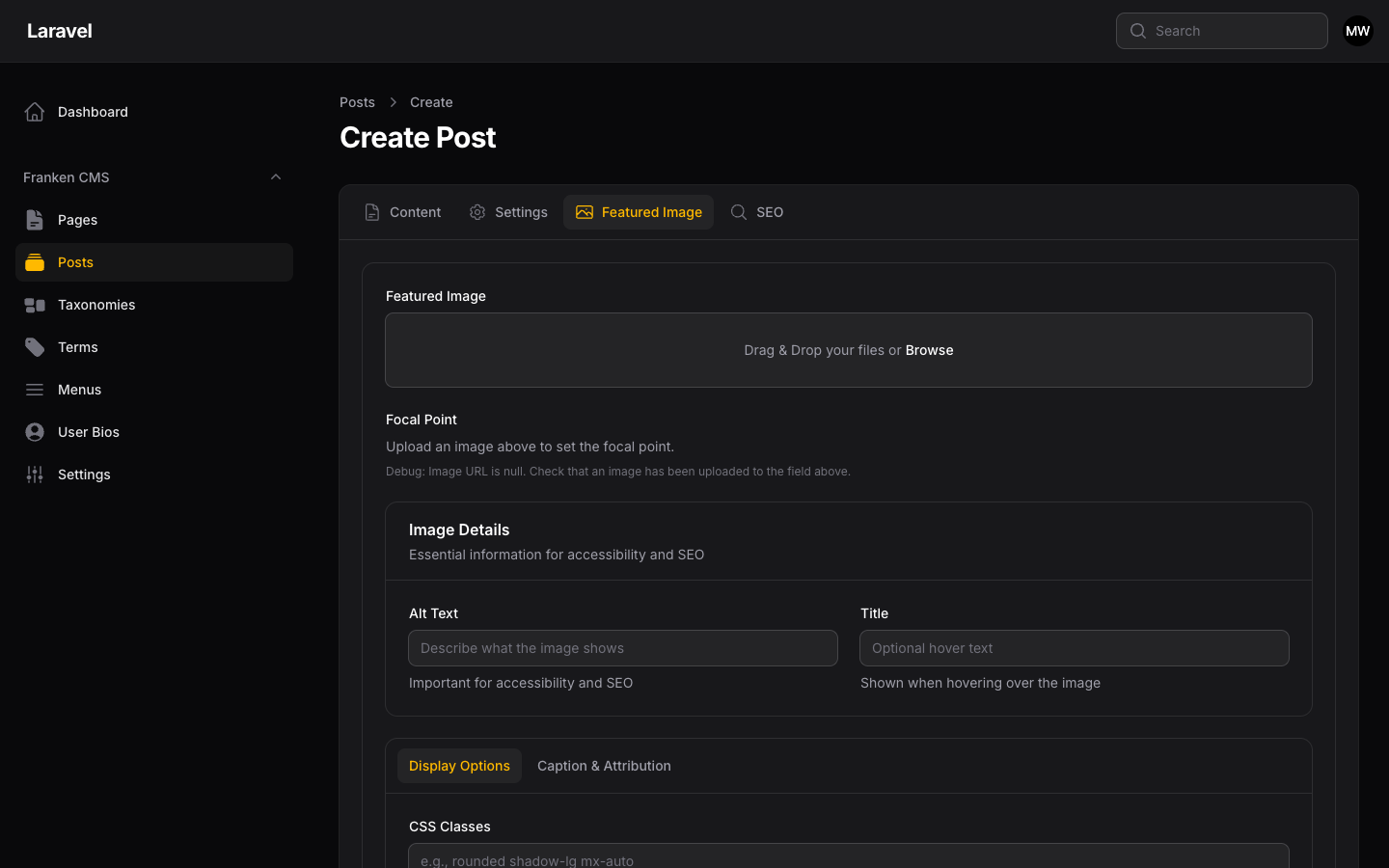
Featured Image tab showing the upload area, focal point settings, image details, and display options.
Image Processing
FrankenCMS automatically generates multiple image sizes:
| Conversion | Size | Use Case |
|---|---|---|
thumb |
150×150 | Thumbnails, admin previews |
small |
300×300 | Small previews |
medium |
600×600 | Content images |
large |
1200×1200 | Feature images |
Displaying Images
Featured Images
@if($post->hasMedia('featured'))
    <img
        src="{{ $post->getFirstMediaUrl('featured', 'large') }}"
        alt="{{ $post->getFirstMedia('featured')->getCustomProperty('alt') }}"
        loading="lazy"
    >
@endif
Responsive Images
@if($post->hasMedia('featured'))
    {{ $post->getFirstMedia('featured')
        ->img('large', ['class' => 'featured-image'])
        ->lazy() }}
@endif
Focal Point Cropping
Set a focal point to ensure important parts of images are visible at all crop sizes:
- Click on the uploaded image
- Click "Set Focal Point"
- Click on the most important area of the image
- Save
Alt Text and Metadata
Always add alt text for accessibility and SEO:
// Get alt text
$alt = $media->getCustomProperty('alt');

// Get caption
$caption = $media->getCustomProperty('caption');

// Get all custom properties
$properties = $media->custom_properties;
Using Media in Template Fields
@frankenImage('banner.image', [
    'label' => 'Hero Background',
    'collection' => 'hero-images',
])


<div style="background-image: url('{{ frankenField('banner.image') }}')">
    ...
</div>
Storage Configuration
Configure the storage disk in your .env file:
# Use local public disk (default)
MEDIA_DISK=public

# Use S3 for production
MEDIA_DISK=s3